How to Use the Webflow Connector in Claude (Complete Guide)

On February 9, 2026, Webflow and Anthropic officially launched a native connector that connects Claude directly to your Webflow site. Not a Zapier workflow, not a Claude Code script running in a terminal. A first-party connector you can activate in under three minutes from the Claude interface, giving the AI direct read and write access to your CMS, pages, metadata, and variables.
This guide covers what the connector actually is, how to set it up, what you can do with it, and where the real limits are. If you're new to Webflow, start with our complete Webflow overview before diving in here.
What Is the Webflow Connector?
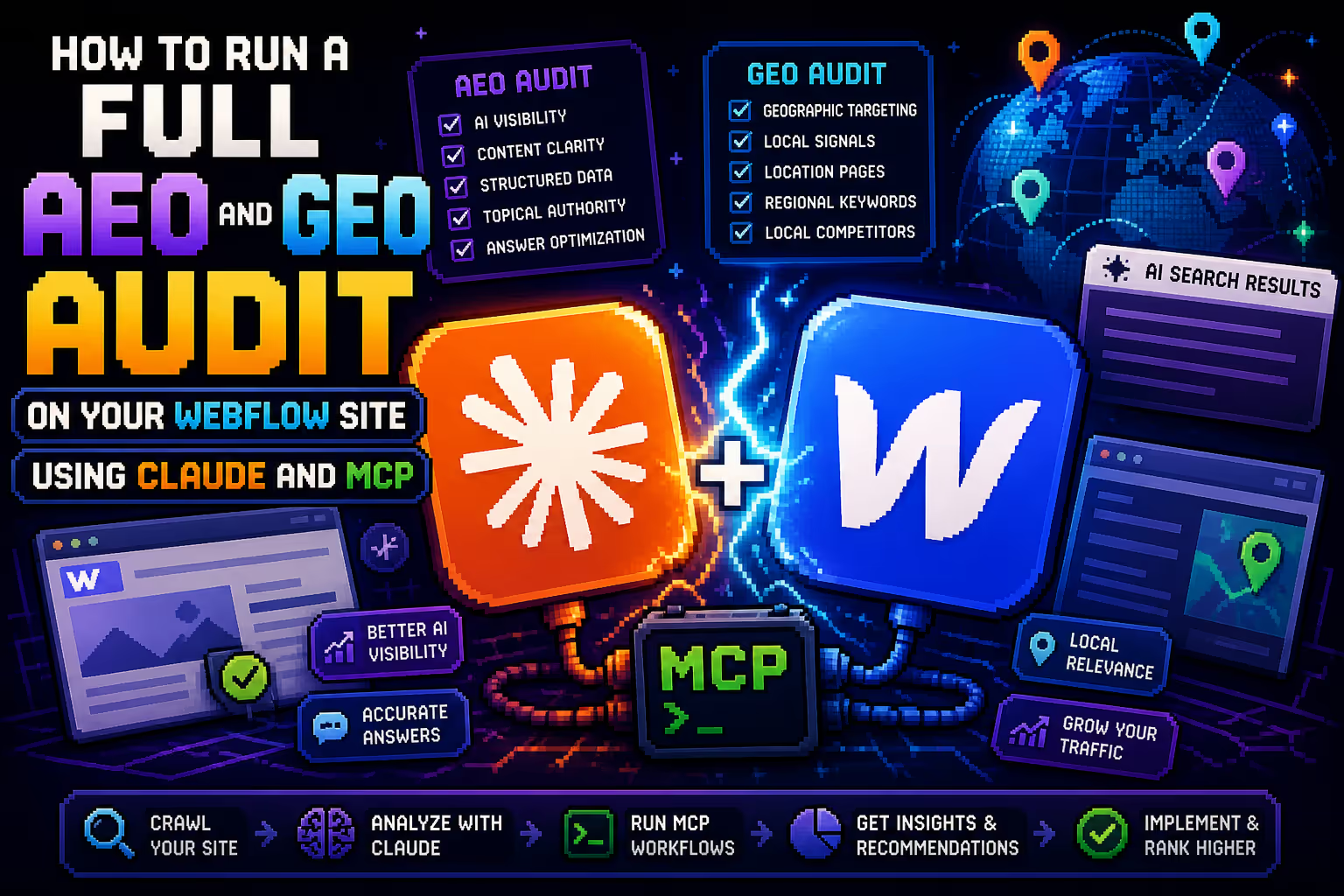
The Webflow connector is built on Webflow's MCP server. MCP, or Model Context Protocol, is an open standard developed by Anthropic in late 2024. Its role is to establish a common protocol between large language models and external tools, so Claude can interact with third-party services without custom code or fragile configuration.
The Webflow MCP server exposes two families of tools to Claude:
Designer API handles canvas manipulation, element creation, style management, CSS variables, components, and responsive breakpoints.
Data API handles CMS operations (collections, items, fields), localization management, SEO metadata, and custom code injection.
Before the connector existed, giving an AI access to Webflow required either Claude Code (terminal, Node.js 22.3+, manual OAuth configuration), building Zapier or Make workflows, or calling the REST API directly. All valid approaches, but reserved for technical profiles.
With the native connector, all of that disappears. Claude acts directly on your site, on your behalf, with your Webflow permissions, from an ordinary conversation window.
How to Set It Up
The setup takes less than three minutes:
In Claude, click the + in the Chat menu at the bottom left, select Connectors, then Browse Connectors. Search for Webflow and click the button to add it. Claude redirects you to Webflow to authorize access, where you select which sites to connect and confirm permissions.
Back in Claude, open the connector and click Configure to choose your approval method: automatic (Claude executes without confirming) or manual (Claude asks for your consent before each action).
For a production site, manual mode is recommended, at least at the start. You keep visibility into what Claude is actually doing before it gets applied.
Two prerequisites to note: a paid Claude plan (Pro at $20/month or Team), and for operations that affect the canvas via the Designer API, the Webflow companion app needs to stay open in the Designer. CMS and metadata operations through the Data API work without the Designer open, which covers the majority of everyday use cases.
What You Can Do With It
Bulk SEO audits and corrections
Meta titles that are too long, generic meta descriptions, missing alt tags on CMS images. These are tasks that take hours manually and tend to get pushed back because the effort-to-value ratio feels off.
With the connector, the workflow becomes: Claude lists all CMS pages and items, identifies meta titles over 60 characters or missing the main keyword from the slug, proposes a corrected version for each case, and after your validation, applies the corrections directly in Webflow. For context on what proper Webflow SEO looks like, the complete Webflow SEO guide is a useful companion to this workflow.
Prompt that works well:
"Audit all pages on [URL]. For each page, check that the meta title is under 60 characters and contains the main term visible in the slug. List problem pages in a table with: current URL, current meta title, issue identified, proposed correction. Do not change anything yet, wait for my approval."
Content production that matches your existing structure
If you have a blog with an established structure and tone, Claude can read your existing posts, analyze the pattern, and write new content that precisely replicates the format, including tables, anchor links, and internal linking, then create the CMS item as a draft.
Generating local pages without duplicating content
For sites running local SEO pages across multiple cities, Claude can read the pillar page and relevant case studies from the CMS, identify the sections that need adapting, generate a version tailored to the target city with localized specifics built in, and create the draft in the CMS with the right metadata.
Design system audits
On sites with multiple contributors or sites that are over a year old, CSS classes tend to accumulate into a mess. Claude can audit all classes and variables on a site, identify duplicates, naming inconsistencies, and hard-coded values that should be converted to CSS variables, then list everything in a structured report before touching anything. This directly addresses the structural issues covered in why most Webflow websites don't scale well.
Where the Real Limits Are
Image uploads are not possible. Claude cannot add assets to your Webflow media library. Images need to be uploaded manually or through a separate workflow before Claude can reference them by ID.
Disconnections happen during long sessions. Across long sequences of linked actions, the connector can lose connection and require a restart. Always check the result before publishing.
The API has rate limits. For bulk operations on sites with large volumes (500+ CMS items), you need to paginate requests and work in batches rather than all at once.
Human review is non-negotiable. Claude can introduce a factual error, miss a tone shift, or produce an inaccurate alt tag. Never publish without reviewing. That applies regardless of how the connector is configured.
Connector vs Claude Code: What Is the Difference
Claude Code is a command line tool that requires Node.js 22.3+, manual OAuth configuration, and installation via npm. It is built for developers who want advanced automations or scripting with full control over the implementation.
The native connector is activated from the Claude web interface in a few clicks, with no terminal and no technical configuration required. For CMS management, SEO workflows, and content operations, the connector is the right choice for the large majority of teams.
Does It Work With Webflow Localization?
Yes. Claude can read content from a primary locale and push translated or adapted content into a secondary locale. This is one of the more powerful use cases for multilingual sites, particularly for agencies managing international projects.
Can Claude Publish Directly or Only Create Drafts?
Both are possible depending on the instruction you give. In manual approval mode, Claude lists the actions it will perform and waits for your confirmation before applying them. In automatic mode, it acts directly. Working through drafts and reviewing before publication is always the safer approach regardless of which mode you use.

Milan Kostic
Freelance Webflow Developer