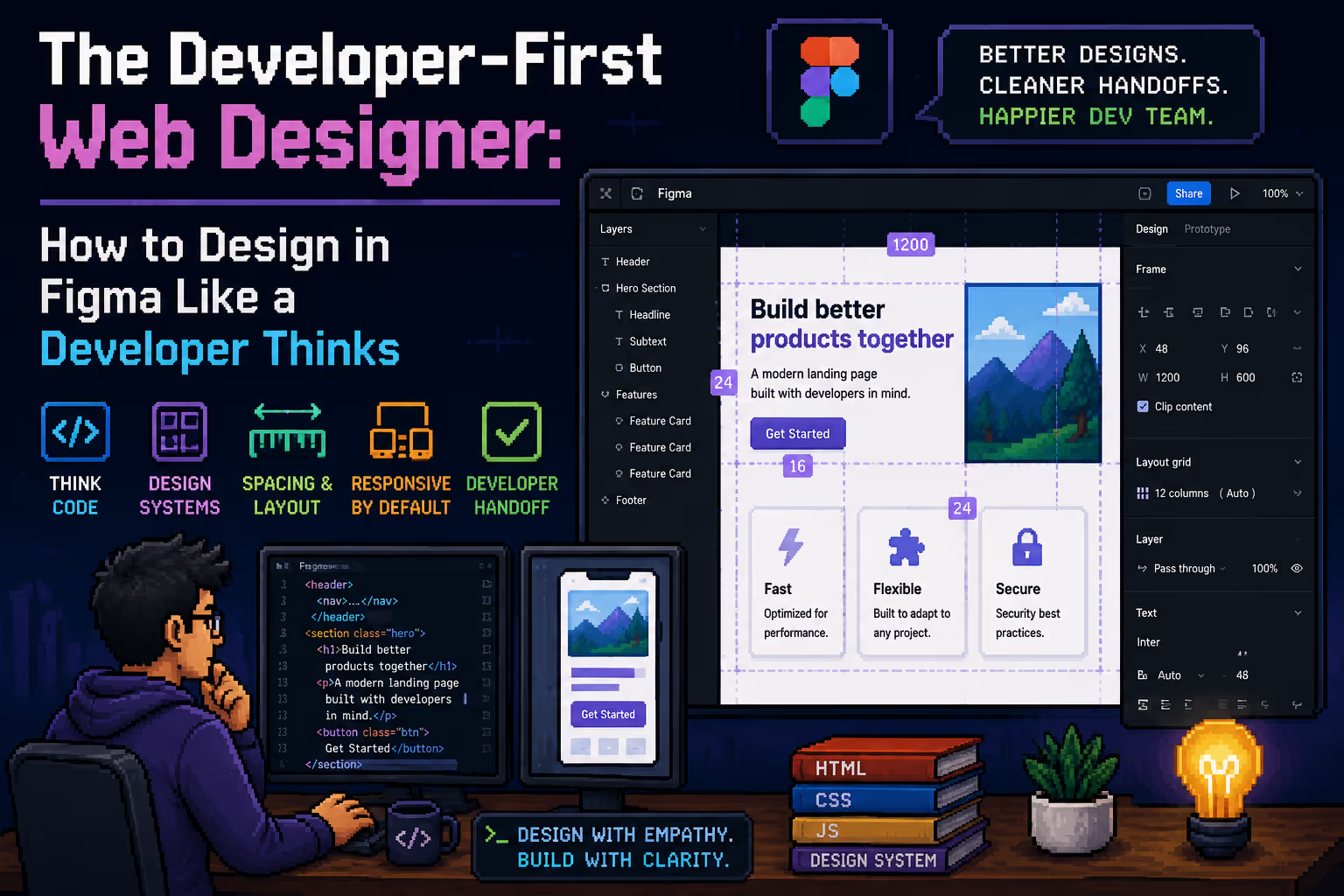
The Developer-First Web Designer: How to Design in Figma Like a Developer Thinks
May 12, 2026
The Developer-First Web Designer: How to Design in Figma Like a Developer Thinks

Most web designers learn Figma the same way. They watch tutorials, master the pen tool, build beautiful screens, and hand off a link to the developer. Then the back-and-forth starts. "Can you add the spacing values here?" "What font size is this on mobile?" "This button doesn't exist in the component library." "Why are there 47 shades of blue?"

If you have been designing for a while, you already know this pattern. You might not have a name for what the fix looks like, but experienced designers have quietly developed it over years of watching their files get handed off and rebuilt from scratch.

The fix is called a developer-first mindset. It does not mean you need to write code. It means you design with an understanding of how your work will actually be built, so that what leaves your Figma file and what ends up on the screen are the same thing.

What Experienced Designers Already Know (But Rarely Say Out Loud)

Senior designers who have worked with developers long enough develop certain habits instinctively. They stop using random spacing values and start working on an 8-point grid. They name their layers properly because they have seen developers curse at a file full of "Frame 247 copy 3." They build one button component and connect everything to it, instead of drawing a new button on every screen.

These habits were not taught in most design courses. They were learned through friction: through the moment a developer had to ask what the hover state looks like, through the redesign that broke twelve screens because the color was hardcoded instead of tied to a style.

If you are earlier in your career, you do not have to wait for the friction to teach you. You can adopt this thinking now, inside Figma, before you ever hand off a single file.

The Core Shift: From Designing Screens to Designing Systems

The most fundamental difference between a junior designer and a developer-first designer is not skill level. It is the unit of thinking.

Junior designers think in screens. They open a new frame, design the homepage, then the about page, then the contact page. Each screen is its own project.

Developer-first designers think in systems. Before they design a single screen, they ask: what are the rules that will govern every screen? What are the colors, the type sizes, the spacing increments, the component behaviors? Once the system is defined, the screens become the easy part.

This is not just philosophical. It has direct practical consequences in Figma.

Auto Layout: Your Direct Line to Flexbox

Auto Layout is the single most important Figma feature for developer-first designers, and it is also the most misunderstood one.

Most designers treat Auto Layout as a convenience, something that makes resizing easier. That is true, but it misses the point entirely. Auto Layout in Figma is a visual representation of CSS flexbox. When you set a frame to horizontal Auto Layout with a gap of 16 and padding of 24, you are describing a flex container with gap: 16px and padding: 24px. That is exactly what the developer will write.

When you do not use Auto Layout, you are describing absolute positioning. Which means the developer has to figure out the layout logic themselves, and they may do it differently than you imagined.

The practical rule: any group of elements that has a relationship to each other should be an Auto Layout frame. Navigation items, card content, form fields, button text and icon combinations, section layouts. If elements need to stack, wrap, or space themselves consistently, Auto Layout is the answer.

The specific behaviors to understand:

Direction sets whether children stack horizontally or vertically. This maps to flex-direction in CSS.

Gap is the space between children. This maps to gap in CSS.

Padding is the space inside the container. Same word, same concept in CSS.

Hug content means the container shrinks to fit its children. Fill container means it expands to fill its parent. These map to width: fit-content and width: 100% respectively.

Wrap maps to flex-wrap: wrap in CSS, which is how content flows to the next line on smaller screens.

Understanding these behaviors means your handoff already communicates layout logic. The developer inspects your frame and sees the exact structure you intended, without having to guess.

Variables: Design Tokens Before They Reach the Developer

Figma Variables are the closest thing the tool has to CSS custom properties. A CSS custom property looks like this: --color-primary: #0057FF. A Figma variable looks exactly the same in concept: a named value that can be referenced everywhere and changed in one place.

When you use a raw hex code on a button, the developer has to ask: is this the brand primary? Should this use the existing variable in the codebase, or is this a one-off? When you use a variable named color/brand/primary, the question is already answered.

The three variable types that matter most for web design handoff:

Color variables map directly to color tokens in code. Set up your color system in layers: primitive values like blue-500 at the base, then semantic references like color/action/primary on top. Developers work with semantic tokens, not raw hex codes. Your Figma file should reflect that.

Number variables handle spacing, border radius, and sizing. A spacing system based on 4px or 8px increments means your developer never has to second-guess whether 14px padding was intentional or a mistake. If it is not on the scale, it is a mistake.

Boolean variables control component states: is this element visible? Is this variant active? These power interactive components and connect directly to how conditional rendering works in code.

The moment you set up variables and connect your components to them, your file becomes a living system. Change one variable and watch it propagate everywhere. This is what design systems actually mean in practice.

Components and Variants: One Source of Truth

Copy-pasting a button is not design work. It is busywork that will eventually cause problems.

Every repeating element in a design should be a component. Not because it saves time in the short term, but because it creates a single point of control. When the button changes, it changes everywhere. When the card layout shifts, every card shifts. This is how production code works, and your design file should model it.

Variants extend this further. Instead of three separate button components named Button Primary, Button Secondary, and Button Disabled, you build one component with a property panel that controls state, size, and type. The developer sees one component with defined states. No ambiguity about whether the disabled button is a separate element or the same element in a different state.

Component properties in Figma map closely to props in component-based development. When you set up a card component with a boolean property called Has Image that shows or hides the image slot, you are describing a prop that a developer would actually write.

The Style Guide as a Contract

A style guide in Figma is not a nice-to-have presentation slide at the start of the file. It is the contract between the designer and the developer. It defines what is allowed and what is not.

A complete style guide covers the color palette with variable names, the type scale with size, weight, line height, and letter spacing for each level, the spacing scale, the border radius options, the shadow styles, and the grid system.

When a developer opens a new project file and sees a clean style guide with named variables and documented components, the build process is significantly faster and more predictable. When they open a file and start seeing values that do not match any pattern, they start making judgment calls. Those judgment calls accumulate into inconsistency.

The style guide is where you document the system before you use it. It forces you to make decisions intentionally instead of on the fly.

Relume and the Value of Pre-Built Systems

Relume is a component library built specifically for web design. For designers who are newer to the developer-first mindset, it is genuinely useful as a reference point, not necessarily as a starting library for every project, but as an example of how a system designed for implementation actually looks.

Every Relume component is built with Auto Layout, uses consistent spacing, follows a naming convention, and is structured to map cleanly to how it would be built in code. Looking at how Relume constructs a navbar or a card section tells you more about developer-first design than most tutorials do.

The principle it demonstrates is this: design decisions should be systematic before they are creative. The grid, the spacing, the component structure come first. The visual expression comes second, within the rules of the system.

Naming: The Underrated Part of Handoff

No developer has ever been grateful for a layer named Rectangle 58. They have been grateful for card/thumbnail/image.

Naming conventions in Figma follow the same logic as naming conventions in code. Use forward slashes to create hierarchy. Use lowercase and consistent terminology. Name things for what they are, not what they look like.

A layer named blue box describes appearance. A layer named notification/badge/count describes purpose and context. When a developer is building the notification system, they can find every relevant element instantly.

This applies to components, variables, styles, and frames. Consistent naming is the part of developer-first design that costs the least effort and pays the most dividends over time.

Responsive Thinking Starts in Figma, Not at the End

One of the most common mistakes in junior designer files is that responsive behavior was never defined. The desktop looks perfect. The developer asks what the mobile layout should be and gets a shrug or a quick sketch.

Developer-first designers define responsive behavior in the file. This does not always mean designing every breakpoint in full detail. It means using constraints and Auto Layout in a way that communicates intent. A section built with fill container and auto-wrapping columns communicates that it should stack vertically on smaller screens. A navigation built with Auto Layout and horizontal spacing communicates how it collapses.

When you use Figma constraints correctly, the developer inspecting your frame sees not just what it looks like at one size, but how it should behave when the browser resizes.

The Real Measure of a Good Design File

The measure of a good design file is not how beautiful it looks on a presentation screen. It is how many questions a developer does not have to ask.

Every question a developer asks during a build represents a gap in the file. Sometimes those gaps are genuinely ambiguous design decisions that need discussion. More often, they are things the designer knew but did not communicate: the hover state, the empty state, the mobile behavior, the spacing between two specific elements.

A developer-first designer anticipates those questions and answers them inside the file, through proper Auto Layout, connected variables, well-named components, and documented states.

This is the mindset shift that experienced designers have made, often without naming it. You do not have to wait for years of friction to develop it. You can start with your next Figma file, before the first frame is drawn, by asking one question: how is this going to be built?

The answer to that question, embedded throughout your design decisions, is what makes the difference between a file that frustrates and a file that ships cleanly. If you want to understand how this thinking connects to the build side, the post on going from Figma to Webflow covers what happens after the handoff.

Frequently Asked Questions

What does developer-first web design actually mean?

Developer-first web design means designing in Figma with an understanding of how your work will be built in code. It does not require knowing how to code. It means using Auto Layout the way a developer uses flexbox, setting up Variables the way a developer sets up CSS custom properties, and building components the way a developer builds reusable UI elements.


Why is Auto Layout so important for developer handoff?

Auto Layout in Figma directly mirrors CSS flexbox logic. When you use it correctly, the developer inspecting your file sees the exact layout behavior you intended, including direction, spacing, padding, and how elements resize. Without Auto Layout, the developer has to guess at the layout logic and may implement it differently than you designed.


What are Figma Variables and why do they matter?

Figma Variables are named values that work like CSS custom properties. Instead of applying a raw hex code to every element, you define a variable like color/brand/primary and reference it everywhere. When the color changes, it updates across the entire file in one step. This maps directly to how developers manage design tokens in code, making handoff significantly cleaner.

Do I need to design every breakpoint in Figma?

Not necessarily. What matters is communicating responsive intent through your use of Auto Layout and constraints. A layout built with fill container and wrapping columns communicates how it should behave on smaller screens without requiring a separate mobile frame for every section. That said, key templates like the mobile navigation and complex section layouts benefit from explicit mobile designs.


What is the most common mistake junior designers make in Figma?

The most common mistake is thinking in screens instead of systems. Designing each page as a standalone project, using raw color values instead of variables, duplicating elements instead of using components, and leaving responsive behavior undefined. All of these create friction at handoff and result in inconsistency in the final build.

Let’s talk about your website

Other articles

AI Project Management Tools: An Honest Review for 2026

AI Project Management Tools: An Honest Review for 2026

Not every project management tool that says AI-powered actually is. Here is an honest breakdown of ten tools organized by what your team actually needs.

Webflow vs Squarespace: A Straightforward Breakdown for 2026

Webflow vs Squarespace: A Straightforward Breakdown for 2026

Webflow and Squarespace are often compared, but they serve completely different users. Here is a clear breakdown of the key differences across design, CMS, SEO, ecommerce, and pricing.

What are LLMs and what does that mean for building websites

What are LLMs and what does that mean for building websites

A practical guide to understanding large language models and how to make your Webflow site more readable and citable by AI tools.

Why B2B SaaS Marketing Teams Are Switching to Webflow in 2026

Why B2B SaaS Marketing Teams Are Switching to Webflow in 2026

The real question isn't whether Webflow is a good tool. It's why so many B2B SaaS companies spent years accepting that their website was the slowest part of their organization.

How to Run a Full AEO and GEO Audit on Your Webflow Site Using Claude and MCP

How to Run a Full AEO and GEO Audit on Your Webflow Site Using Claude and MCP

How to audit your Webflow site for AEO and GEO in under 30 minutes using Claude and MCP, with exact prompts for each step.

How to Run a Full Webflow SEO Audit Using Claude and MCP in Under 30 Minutes

How to Run a Full Webflow SEO Audit Using Claude and MCP in Under 30 Minutes

How to use Claude connected to your Webflow site via MCP to run a full SEO audit in under 30 minutes, with exact prompts you can copy and use today.

How to Optimize Your Webflow Site for AI Search Engines: Webflow for AEO

How to Optimize Your Webflow Site for AI Search Engines: Webflow for AEO

A practical guide to AEO for Webflow sites in 2026. How AI search engines discover, extract, and cite your content, and what to do about it.

The Best AI Tools for Startups in 2026. From Launch to Series A

The Best AI Tools for Startups in 2026. From Launch to Series A

A stage-by-stage breakdown of the best AI tools for startups in 2026, from building your first MVP and marketing site to scaling past Series A.

How the right website pays for itself

How the right website pays for itself

A poorly built website costs more than you think. Learn how the right website saves money, reduces ongoing expenses, and actively earns for your business.

Why I build every client website in Webflow (and what that means for you)

Why I build every client website in Webflow (and what that means for you)

There are dozens of platforms to build a website on. Here's why I use Webflow for every client, and what you actually get as a result.

Why your outdated website is costing you clients (and how to know if yours qualifies)

Why your outdated website is costing you clients (and how to know if yours qualifies)

60% of small businesses lose customers because of website issues. Most of them don't even know it's happening. Here's how to tell if your site is one of them.

Why blogging still works in 2026 (and how to do it without wasting time)

Why blogging still works in 2026 (and how to do it without wasting time)

Over 60% of internet users read blogs regularly. 81% of marketers say it still delivers results. So why does every small business owner I talk to have a blog they haven't touched in a year?

How to Use the Webflow Connector in Claude (Complete Guide)

How to Use the Webflow Connector in Claude (Complete Guide)

Learn how to set up the Webflow connector in Claude, what you can automate, and where the real limits are.

What is Webflow?

What is Webflow?

Learn what Webflow really is, why it's not just another website builder, and how it works.

What is Schema Markup? The Secret Language of High-Ranking Websites

What is Schema Markup? The Secret Language of High-Ranking Websites

What exactly is Schema markup? Learn how structured data helps Google understand your content and why it's the most underused growth asset in technical SEO.

How to Get a 100/100 Lighthouse Score on Webflow Mobile: A Full-Service Guide

How to Get a 100/100 Lighthouse Score on Webflow Mobile: A Full-Service Guide

Achieve a perfect 100/100 Lighthouse score on Webflow mobile. Learn expert strategies for AVIF images, font preloading, and script delays to boost your SEO ranking.

The Ultimate Webflow Migration Checklist for B2B & SaaS: A Stress-Free Guide to Scaling Without Losing SEO Juice

The Ultimate Webflow Migration Checklist for B2B & SaaS: A Stress-Free Guide to Scaling Without Losing SEO Juice

Moving your SaaS site to Webflow? Use this technical checklist to protect your SEO, automate CMS migration, and sync your CRM. Migrate without the stress.

The Ultimate Guide to Webflow SEO in 2026

The Ultimate Guide to Webflow SEO in 2026

Master Webflow SEO in 2026. Learn how to leverage AI, optimize for zero-click searches, and boost site speed with Webflow’s built-in tools. Start ranking higher!

From Figma to Webflow: The Definitive Guide for 2026

From Figma to Webflow: The Definitive Guide for 2026

Turn Figma designs into high-performance Webflow websites with a structured workflow, clean architecture, and modern best practices.

How much does a business website cost in the US?

How much does a business website cost in the US?

Learn how much a business website really costs in the US. A clear breakdown of pricing for small businesses, startups, landing pages, and larger projects.

Webflow vs Lovable: a platform comparison. Which one is better?

Webflow vs Lovable: a platform comparison. Which one is better?

A practical comparison of Webflow and Lovable. Learn which no-code platform is better for design flexibility, SEO, scalability, and long-term website growth.

Best No-Code Platforms for Websites in 2026: A Complete Comparison

Best No-Code Platforms for Websites in 2026: A Complete Comparison

A complete comparison of the best no-code platforms for building websites in 2026. Compare Webflow, Framer, Wordpress, and more to choose the right platform for your project.

Webflow and Framer: A Practical Comparison for 2026

Webflow and Framer: A Practical Comparison for 2026

Full 2026 Webflow vs Framer comparison covering CMS power, pricing, SEO tools, AI features, and which no-code platform fits your project.

Webflow App Gen: A Complete Guide to the AI Revolution in Web App Generation

Webflow App Gen: A Complete Guide to the AI Revolution in Web App Generation

Learn what Webflow App Gen is and how it uses AI to generate production-ready web applications directly inside Webflow. Features, CMS integration, and deployment explained.

Webflow Migration Guide: How to Move Your B2B Website Without Losing SEO Rankings

Webflow Migration Guide: How to Move Your B2B Website Without Losing SEO Rankings

Learn how to migrate your B2B website to Webflow without losing SEO rankings. A practical guide covering redirects, CMS structure, performance, and post-launch checks.

SEO, AEO, and GEO: what should you focus on in 2026?

SEO, AEO, and GEO: what should you focus on in 2026?

Learn the difference between SEO, AEO, and GEO, how search is evolving, and what to focus on in 2026 to stay visible in AI-driven and traditional search.

The difference between award-winning and high-converting websites

The difference between award-winning and high-converting websites

What’s the real difference between award-winning and high-converting websites? Learn how design goals, usability, and strategy impact business results.

How to fix conversion issues when you already have traffic

How to fix conversion issues when you already have traffic

Your website gets traffic but no leads? Learn why visitors aren’t converting and how better design, messaging, and structure can turn traffic into real business results.

Migrating to Webflow from other platforms

Migrating to Webflow from other platforms

Learn how migrating to Webflow from WordPress or other platforms works, what the real process looks like, and how it affects performance, scalability, and SEO.

Why SaaS companies should move to Webflow in 2026

Why SaaS companies should move to Webflow in 2026

Discover why SaaS companies are moving to Webflow in 2026 for better performance, SEO control, scalability, and faster marketing workflows.

Is Webflow Good for SEO? What Actually Matters

Is Webflow Good for SEO? What Actually Matters

Is Webflow good for SEO? Learn what actually affects rankings, from content and structure to technical setup, and why Webflow isn’t the problem.

Webflow vs WordPress which platform is right for your website

Webflow vs WordPress which platform is right for your website

This article breaks down whether Webflow is a better alternative to WordPress.

Should designers understand Webflow frameworks for smoother projects?

Should designers understand Webflow frameworks for smoother projects?

Learn why designers benefit from understanding Webflow frameworks and how shared structure improves collaboration, reduces friction, and keeps projects running smoothly.

Why the right Webflow framework matters for scalable websites?

Why the right Webflow framework matters for scalable websites?

Learn why the right Webflow framework is key to building scalable, consistent, and easy to maintain websites.

A closer look at Webflow components

A closer look at Webflow components

Learn why Webflow components are essential for scalable websites and how a component based approach improves consistency, speed, and long term growth.

When design breaks the development process and slows growth

When design breaks the development process and slows growth

Learn how poor design decisions create friction in development, introduce technical debt, and limit long term website scalability and growth.

Why marketing teams struggle to maintain Webflow projects on their own?

Why marketing teams struggle to maintain Webflow projects on their own?

Learn why marketing teams often struggle to manage Webflow websites, the structural mistakes behind it, and how to build a site that supports growth.

Why most Webflow websites do not scale well?

Why most Webflow websites do not scale well?

Learn why many Webflow websites struggle to scale, the structural mistakes behind them, and how to build a Webflow site that supports long term growth.

Webflow vs Custom code: How to choose the right approach for your website?

Webflow vs Custom code: How to choose the right approach for your website?

A clear comparison of Webflow and custom code, focused on choosing the right solution based on speed, flexibility, and business maturity.